
The Complete Guide
How to use LeagueHub365
Everything from first sign-in to a fully automated season — for organisers, team managers and supporters. Ten minutes to read; a whole season of admin saved.
Contents
Jump to a section
Shorter reads
Guides by role
Your first match weekend
The organiser’s week: Comms plan, Match day, Comms log.
Setting up a season
Teams and contacts, fixtures in, the settings that matter.
For committees
What your association sees, controls and can promise its members.
Reversed fixtures
When the away team hosts: the one switch, and why not to swap the score.
Texts explained
What arrives by text, from which number, and why some moments are email only.
FAQ
Straight answers for managers and organisers: emails, links, texts, scores.
For team managers
The three things a manager ever does, each under a minute.
Tournament day
Who does what on the day: the desk, referees and marshals, teams and parents, and what happens with no signal.
Overview
1. What LeagueHub365 does
LeagueHub365 runs leagues, cups and tournaments end to end: it generates fixtures, chases venues and kick-off times, collects scores from the teams themselves, keeps live tables, brackets and results grids, and publishes everything to a public website supporters can follow. Three groups of people use it — and only one of them ever needs an account:
Organisers
Sign in to the app (leaguehub365.app) to set up competitions, oversee results and settle the rare conflict. Everything else runs itself.
Team managers
Never log in. Every email carries a private link to a match page (or day sheet) where they confirm details, request postponements and enter scores.
Supporters
Use the public website — fixtures, results, tables and team pages — with no account, and follow any team or competition by email.
Setup
2. Getting started (organiser)
- Go to leaguehub365.app and continue with Google, Apple or email.
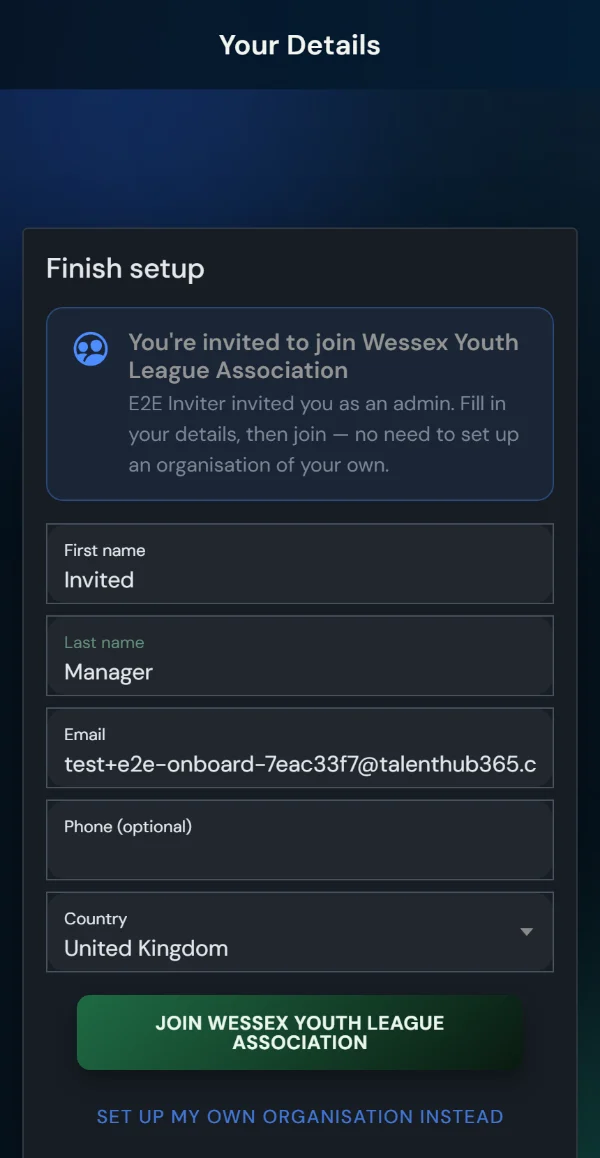
- Invited by an organisation? If an admin invited your email address, the final setup step offers Join <organisation> — one tap puts you straight into their account, with nothing of your own to set up. (Starting your own organisation stays one tap away.)
- Otherwise, name your organisation — it appears on public pages and in every email.
- Optionally invite colleagues under Profile > Staff invites. Roles: Admin (everything), Manager (day-to-day), Viewer (read-only). Invites are bound to the invited address.
- Profile > Communication settings tunes the automated email timeline (venue request lead time, reminder days, score requests) — per account, overridable per competition.
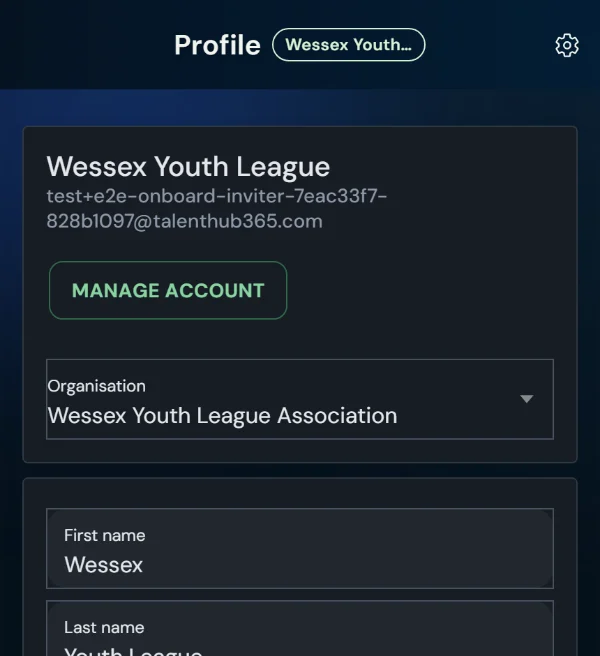
- Belong to more than one organisation? The Profile page shows an organisation picker — choose the one to work in and the whole app follows, no sign-out needed.
Foundation
3. Clubs, teams and contacts
Clubs group your teams (a district, school or community club) and carry the crest, saved venues and a contact email. Teams carry age group, gender and an optional alias — display names like “Woking U11 Girls” are built automatically.
Contact emails power everything
Every automated email goes to both the team's and its club's contact email (deduped). Fastest setup: one email per club — every team in it is covered. Add team-level emails wherever a specific manager should be reached directly. A team can also have other contacts (its edit page, up to five), for example the coach beside the district secretary: they get every email that team gets. Texts go only to the main contact’s phone.
Staff & FA certificates
Each club has a Staff tab with certificate tracking (safeguarding, first aid, DBS, coaching badges). Expiry alerts go out at 60, 30 and 7 days before a certificate lapses, and on the day.
Competitions
4. Creating competitions
League
Single or home-&-away round robin; live table from day one.
Cup
Knockout bracket with optional group stage, penalties after a draw, play-by deadlines and an automatic 3rd/4th place play-off.
Tournament
One-day format across multiple pitches: groups into Cup / Plate finals, or groups only for a qualifier, ending in a seeding list for the next round of tournaments.
Friendly
One-off fixtures with the same automation, no table.
Pick the sport and the right defaults follow — formats, match length, table points and terminology — with every default adjustable per competition (a schools league can run 3 for a win, 2 for a draw, 1 for playing). Visibility is per competition: Public (listed in the Match Centre), Private link only (secret shareable link, regenerable if it leaks — ideal for junior age groups) or Hidden. Individual fixtures can be hidden with Hide public, and individual teams can opt out of a public team page.
Scheduling
5. Generating fixtures
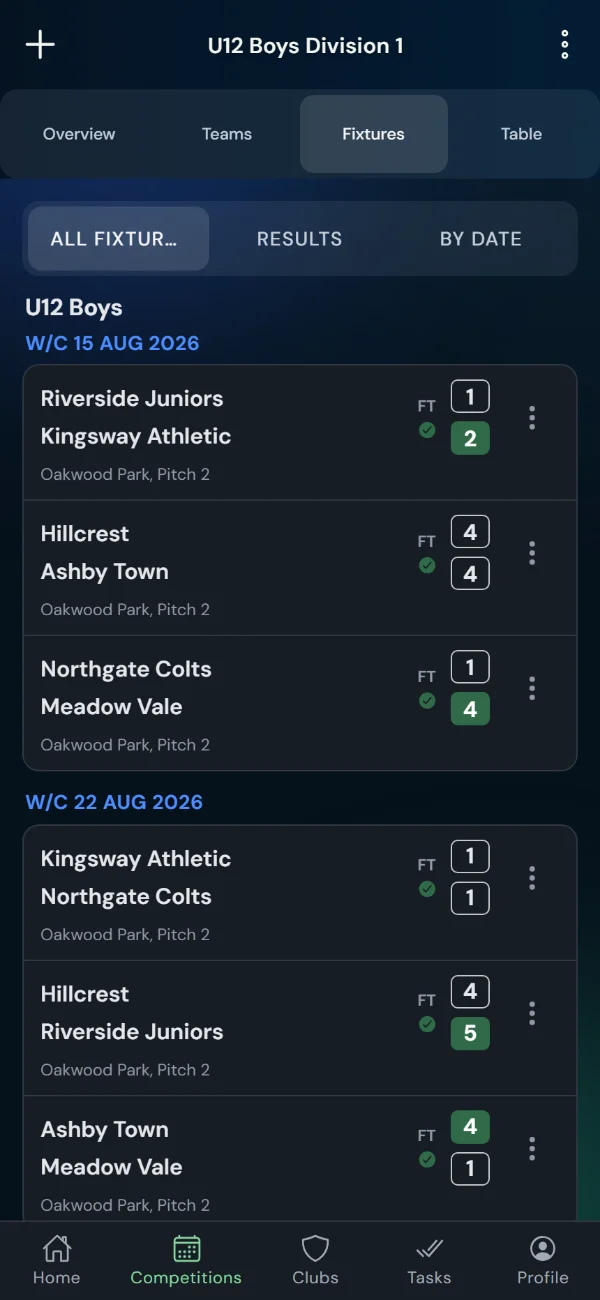
- Enter teams into the competition from your club directory.
- Generate: single or double round robin, on a weekly match day or dateless — teams arrange their own dates and the fixtures group by Week 1, Week 2… until real dates take over.
- Review the draft and publish.
Clash detection
The same club booked twice on one day — across leagues AND cups — is flagged with free dates suggested. Locked dates stay put; the rest can auto-resolve.
Double-headers
One physical match counting in two competitions: link the fixtures and one score entry updates both tables.
Missing-fixture nudge
An incomplete round robin tells you exactly which pairing is missing.
Cups done properly
Winners advance automatically; “Winner R1 tie 3” placeholders fill in as results land.
Tournament days
Groups saved as you set them (Group 1, 2, 3 or A, B, C), each group on its own pitch or all sharing them, a match length per group, preferred pitches per team or group, kick-offs on the 5-minute mark or to the minute, and a finish-by warning. Nobody plays two games at once or three in a row.
Automation
6. Match weekend, automated
The email timeline for every fixture. Leads are counted in whole calendar days, so a lead always lands on the same weekday for a Saturday fixture. Requests and chases go at 07:00 and reminders at 18:00, local time for the competition, so an ask about a game a fortnight away never arrives alongside a reminder about next week’s. Every email carries the team's private match link:
| When | Who | |
|---|---|---|
| Your chosen lead (default 6 days; up to 14 — 13 puts a Saturday fixture’s request on the Sunday a fortnight before) | Venue & kick-off request — only if details are missing + text | Home team |
| 2 days after the request | Follow-up — only if details are still missing | Home team |
| Within 5 minutes of details being set or changed | “Details set — please confirm”, with a Confirm link; the side that set them gets a written copy instead + text | Both teams |
| 2 days after details are set | “Please confirm match details” — early nudge for a side that hasn’t tapped confirm | Unconfirmed side(s) |
| 6 & 3 days before, 18:00 | Match reminder | Both teams |
| 3 days before, 07:00 | “Please confirm match details” — final nudge for a side that still hasn’t confirmed | Unconfirmed side(s) |
| When both teams agree a call-off | Match postponed/cancelled by agreement — settled instantly, replacement created + text | Both teams |
| Match day, 07:10 | Match day sheet — the day’s fixtures, venues and score links (tournaments and any busy Saturday) | Each team playing |
| Tournaments only: 3 days before, 18:00 | Schedule link — date, venue, arrival time and the live day sheet. Tournaments get only this and the 07:10 day sheet: none of the per-fixture emails above | Each team in the tournament |
| After kick-off, at the next slot (09 / 12 / 15 / 18 / 21) | Score request with the entry link + text | Both teams |
| No score by evening | Automatic score chase (manual Chase button too) | Both teams |
Seeing the plan and what actually happened: Comms plan (fixtures menu, or from your profile for the whole account) shows this timeline for each competition with its own settings, and which competitions inherit or override the account defaults. Match day (Home → pick a date, or the link on any date in the fixtures list) shows every fixture on that day with its workflow as coloured chips — request sent, host viewed, details set, away viewed, away confirmed, scores in, result — and lets you resend a request, chase a confirmation or a score, or record a confirmation a manager gave you by email or phone. Comms log (fixtures menu) lists every email and text sent, to whom, and whether it was delivered: emails are checked against Microsoft’s delivery log within half an hour, texts against the mobile network’s receipt within seconds. “Sent” on its own never means delivered.
Details receipt: opening a match page counts as having seen the current details; a one-tap “Got it — details confirmed” records explicit confirmation, visible to the other team and the organiser. Saving your own details self-confirms; any later change re-arms the acknowledgement for the side that didn't make it.
Texts as well as email (optional): turn on “Also send by text (SMS)” in a competition’s Fixture Emails settings and the moments that change someone’s Saturday also arrive as a text from the LeagueHub365 number (+44 7400 472940 — worth saving as a contact): the venue/kick-off request, a details change (to the side that didn’t make it), a call-off, and the score request. Each text starts “LeagueHub365:” and carries one short link on leaguehub365.com to the team’s own match page; the same page is always linked from the matching email. Reminders and confirmation chases stay email-only, so a text always means “act now”. Delivery is confirmed per text in the Comms log.
For Managers
7. The team match page (private link)
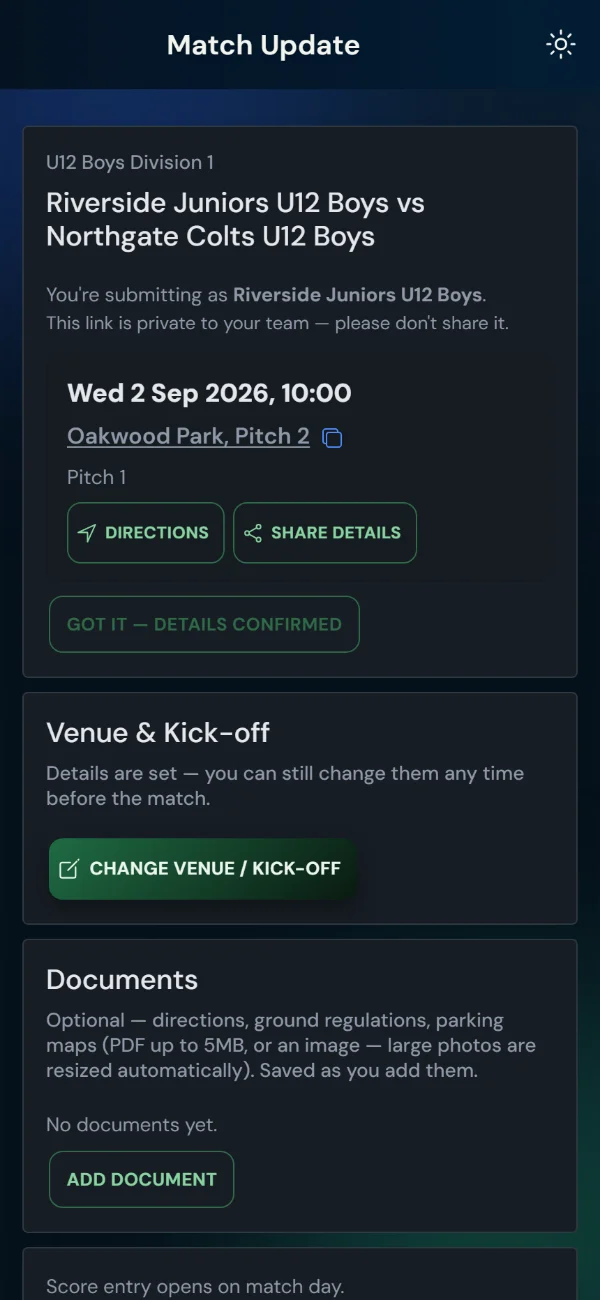
Details up front
Date, kick-off (or “Kick-off TBC”), the venue as a tappable Google Maps link with a copy icon, pitch, parking and changing-room info — and the opposition manager's name and number.
Venue & kick-off (home)
Pick from the club's saved venues or type one; set time, pitch, changing rooms, parking; attach documents. Folds away once set — never locks.
Share details
Once details are set, one tap composes a squad-ready message — opponent, kick-off, venue, map, and the team's public page. Never the private link.
Blind score entry
Opens on match day (with a “played early?” escape hatch). Each side enters without seeing the other's numbers.
Waterlogged/Frozen Pitch?
Request a call-off with a reason — the opposition is told instantly and their manager can confirm it there and then; otherwise the organiser decides. Nothing changes until one of them acts.
Match feedback
Optional notes plus 1–5 ratings for pitch, referee and opposition behaviour, visible to the organiser.
Event Days
8. Match day sheets
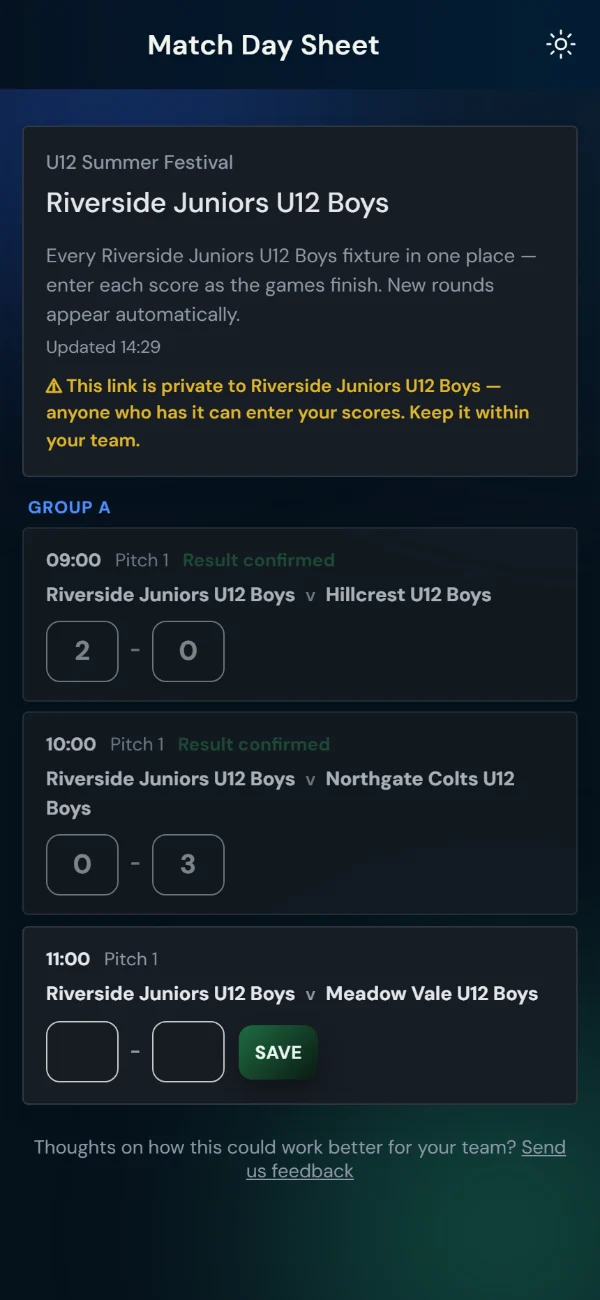
When a team plays several matches in one day, per-fixture emails would be spam. The day sheet is one private link for the team manager and coaches, listing every fixture for that team — pitch, kick-off, opponent — with inline score entry where teams enter scores (“Saved ✓” per row). It refreshes itself every minute (or on the refresh button), so knockout rounds appear as they're drawn, and public competitions add All games (every result in the tournament) and live Tables. The sheet is marked Private, and gives managers a Share the public page button for players and parents instead.
Tournaments: automatic
Sent at 07:10 on the morning of the event to every team playing that day; per-fixture score emails are suppressed.
Who enters scores?
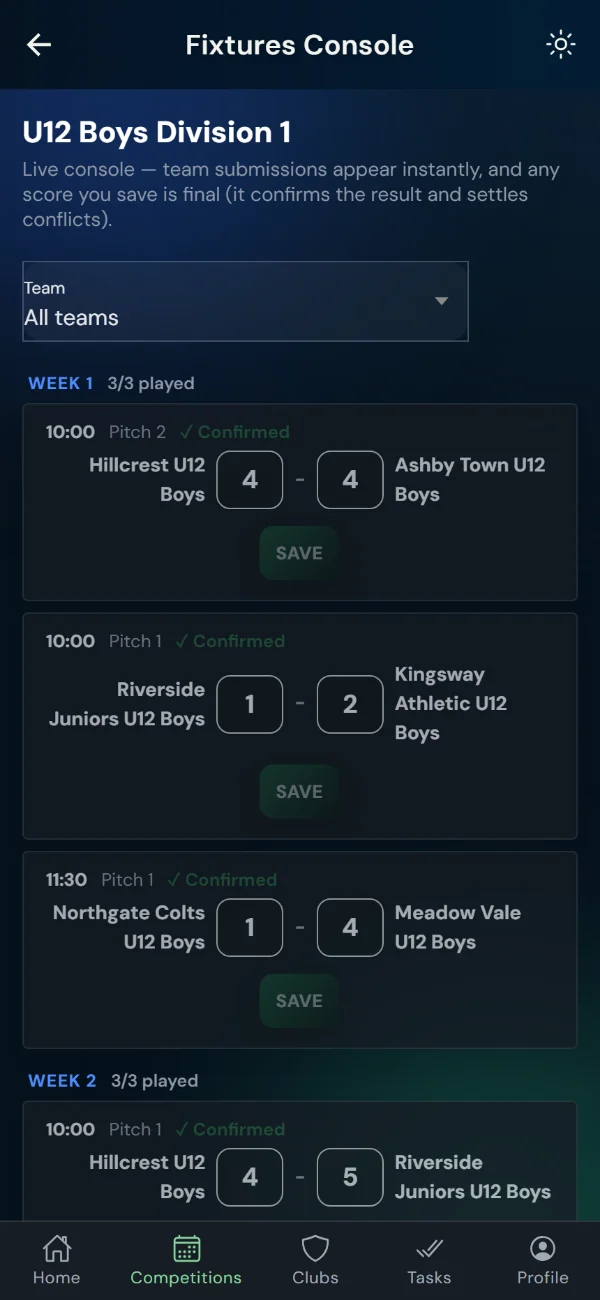
Your call, per tournament: teams can score from their day sheets (the default: the first team’s score counts, and the other team sees it to agree or correct), or turn team entry off and scores come only from marshal sheets and the Fixtures console — day sheets stay live as schedule and tables.
Finals days: one tap
Semis, final and 3rd place in one afternoon? Send from the competition dashboard — Match Day Sheets > Email day sheets. The same button re-sends any time.
Referees and pitch marshals
Often it's the official holding the pen, not the manager. Create a Referee / marshal sheet on the dashboard — one link listing every fixture (or just one pitch), and the score they enter is recorded as the official result, settling any team disagreement. Copy the link or email it to them; revoke it any time.
If a link gets out
Renew all sheets & links replaces every team sheet, official's sheet and match link for the competition in one go — teams are emailed fresh sheets, you hand out the new official's links. Old links stop working immediately.
Results
9. Scores, conflicts and tables
Scores count as they arrive
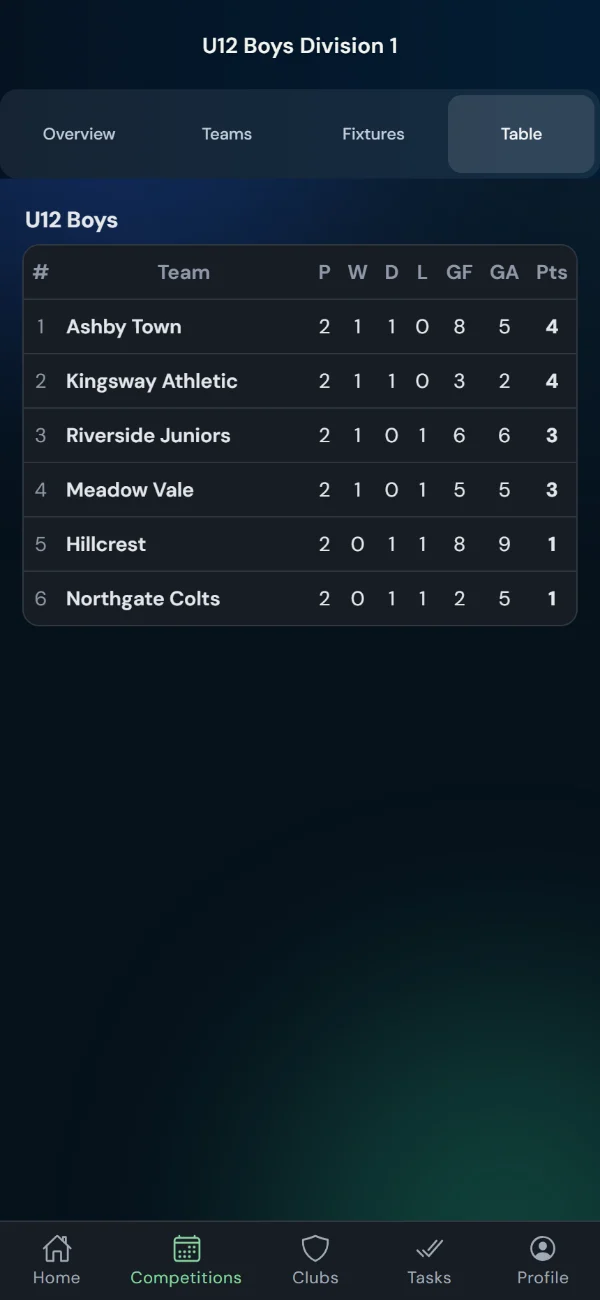
Both sides enter blind; the first score in confirms the result and every table, grid and bracket recalculates instantly. A different score from the other side is flagged for you.
Disagreements flag
A conflict shows you both entries side by side; you set the result. Nothing wrong ever goes public.
Awaiting results
A Home tile lists every past fixture still missing a score, with a one-tap chase per fixture.
Season insights
Home > Season insights (or Insights on a competition) shows who entered the results — teams, officials or you — how many arrived within 24 hours, how many automated emails went out, whether managers opened and confirmed their details, and what still needs you. Copy it as text for a committee update.
Respectful scorelines
Youth football's mercy rule: public pages show Win/Loss instead of a double-digit drubbing; the table still counts the goals.
For Everyone
10. The public site
Match Centre
Search every public competition by name, team, age, gender, season or type — and share pre-filtered links: the Share button copies exactly the view you're looking at. Try it.
Competition pages
Fixtures (by match day or Week N), Table, Results grid, Bracket and Teams tabs — team names link through to team pages.
Team pages
One page per team across every competition and season: fixtures, results, standing, crest — perfect for a squad's parents.
Follow by email
A weekly Monday digest of results and upcoming fixtures for any team or competition, with optional venue/kick-off change alerts. Double opt-in, unsubscribe any time.
Playbook
11. Common scenarios
Set up a league season from scratch
Create clubs (crest, venue, contact email) and teams → create the League competition (sport, age/gender, points, visibility) → enter teams and generate the round robin (dateless or weekly) → publish and share the public link. The emails take over from there.
A team can't play Saturday
The manager sends a postponement request from their match link with a reason. You and the opposition are emailed; the fixture is flagged. Postpone, cancel or keep it — everyone's notified and the flag clears automatically.
The venue moves on Friday night
The home manager taps Change venue / kick-off and saves. Both teams (and opted-in followers) get the update within minutes, and the away side is asked to confirm receipt — you can see whether they have.
Two teams disagree on the score
The fixture shows a conflict with both entries side by side. Set the correct result — tables update instantly.
Running a tournament day
Publish the group fixtures with pitches and times. At 07:10 every team gets its day sheet; scores land from the pitches all day, and knockout rounds appear on every sheet as you draw them.
A junior team must stay off the public site
Set the competition to Private link only (or hide individual fixtures), disable the team's public page if needed, and share the private link with parents only — regenerate it any time.
A parent wants to follow a team
Find the team in the Match Centre, enter an email in the Follow box, confirm the opt-in email. Weekly digest every Monday; unsubscribe any time.
Reference
12. Every automated email
| Trigger | Recipients | Repeats? | |
|---|---|---|---|
| Venue & kick-off request | Lead day before the match, details missing | Home team + club | Once, one follow-up 2 days later |
| Match reminder | Configured days before (default 6 & 3) | Both teams + clubs | Once per day-offset |
| Confirm match details | 2 days after details set, and again 3 days out, while unacknowledged | Unconfirmed side(s) | Twice per change at most |
| Match details updated | Venue/kick-off/pitch changed (debounced) | Both teams; followers with alerts on | Per change burst |
| Postponement / cancellation requested | A team submits a change request | Opposition (instantly); organiser via digest | Per request |
| Call-off confirmed by both teams | The other team agrees on their match page | Both teams + clubs | Per agreement |
| Call-off digest | 12:00 & 15:00 on days with call-off activity | Organiser | Twice daily at most |
| Score request | Nearest slot after kick-off | Both teams + clubs | Once, then chases |
| Score chase | No score by the evening; manual button too | Both teams + clubs | Until scored |
| Match day sheet | 07:10 on tournament days; manual any time | Each team playing | Once per day |
| Weekly digest | Mondays 07:00 | Confirmed followers | Weekly |
| Certificate expiry | 60/30/7/0 days before a cert lapses | Staff member (or club) | Once per stage |